


Featured Resource
SchoolStatus Launches Literacy Solution to Help Districts Engage Families in Improving Reading Outcomes
Read More >

SchoolStatus Launches Literacy Solution to Help Districts Engage Families in Improving Reading Outcomes
Read More >
Key Attendance Trends from the 2025-26 School Year: Insights from 1.1M Students
Read More >
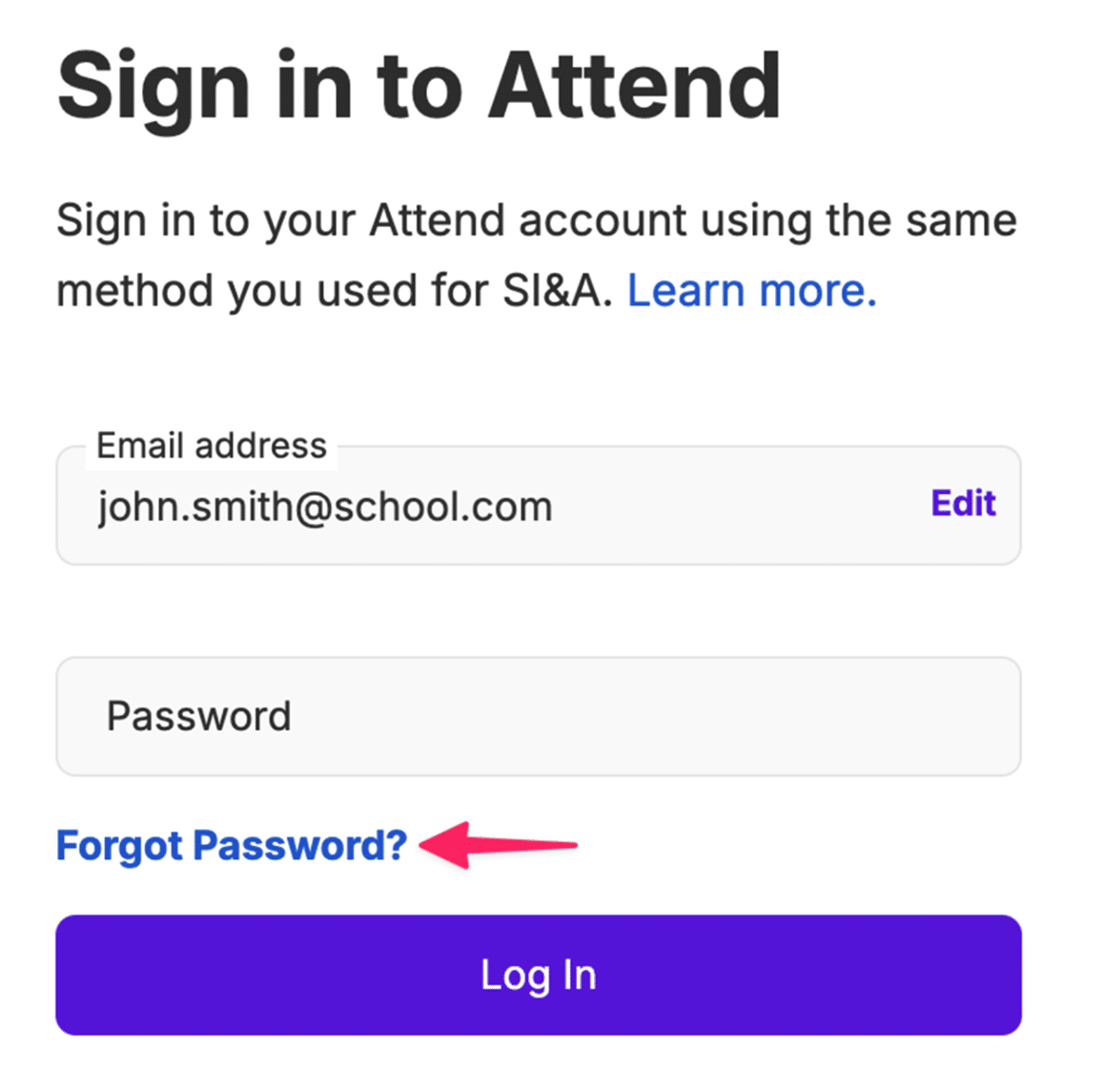
If you’ve forgotten your password, click the “Forgot Password” link on the login page and follow the instructions to reset it.
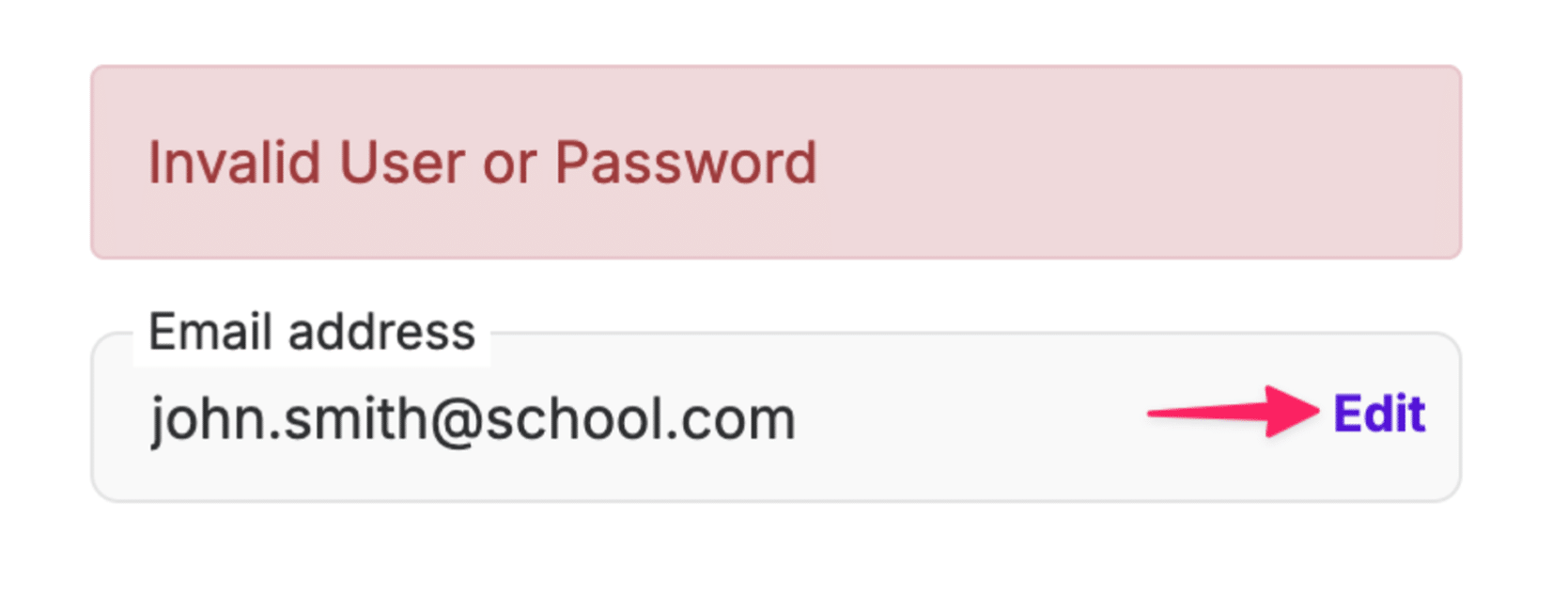
If you see this error message below:
Depending on your school or district setup, you may be able to log in using Single Sign-On (SSO) through Google or Microsoft.
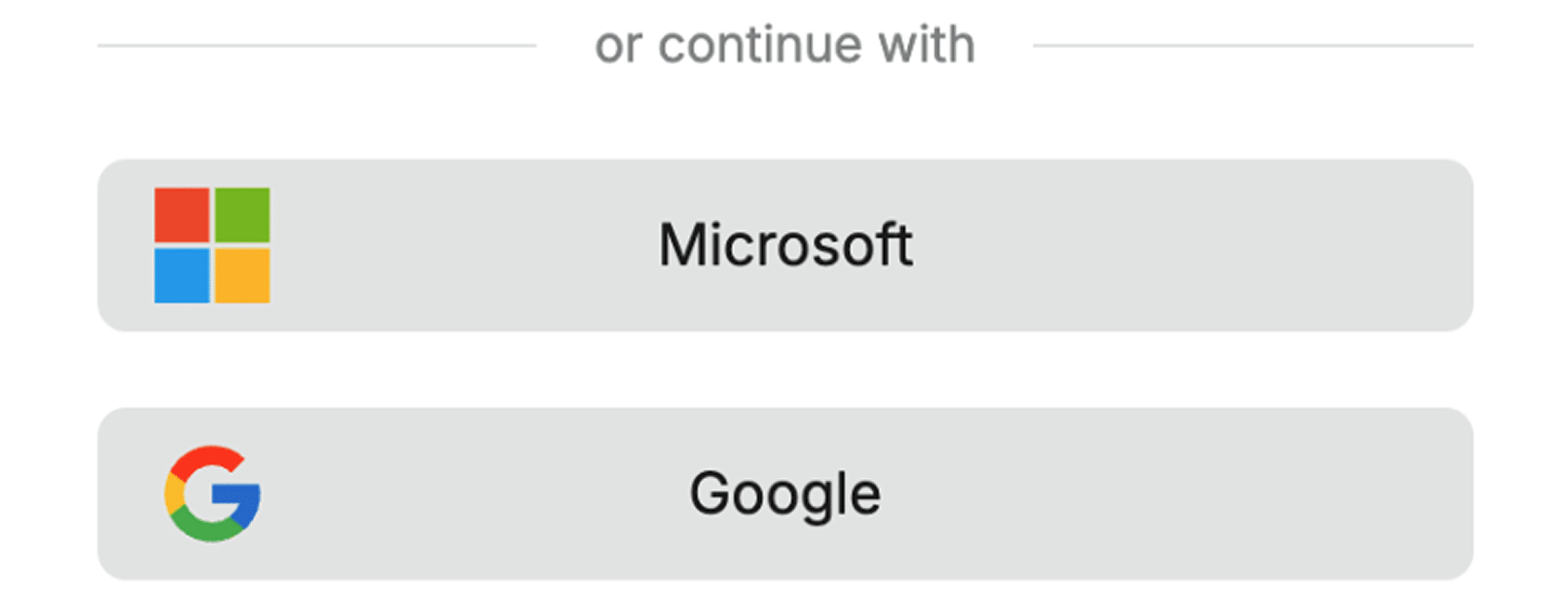
Simply select the appropriate option on the login page and follow the prompts. Please note: If you use SSO to log in, the “Reset Your Password” link will not be available. If you are having trouble logging in with SSO, please contact our support team at [email protected] and include your full name, email address, and school or district name.
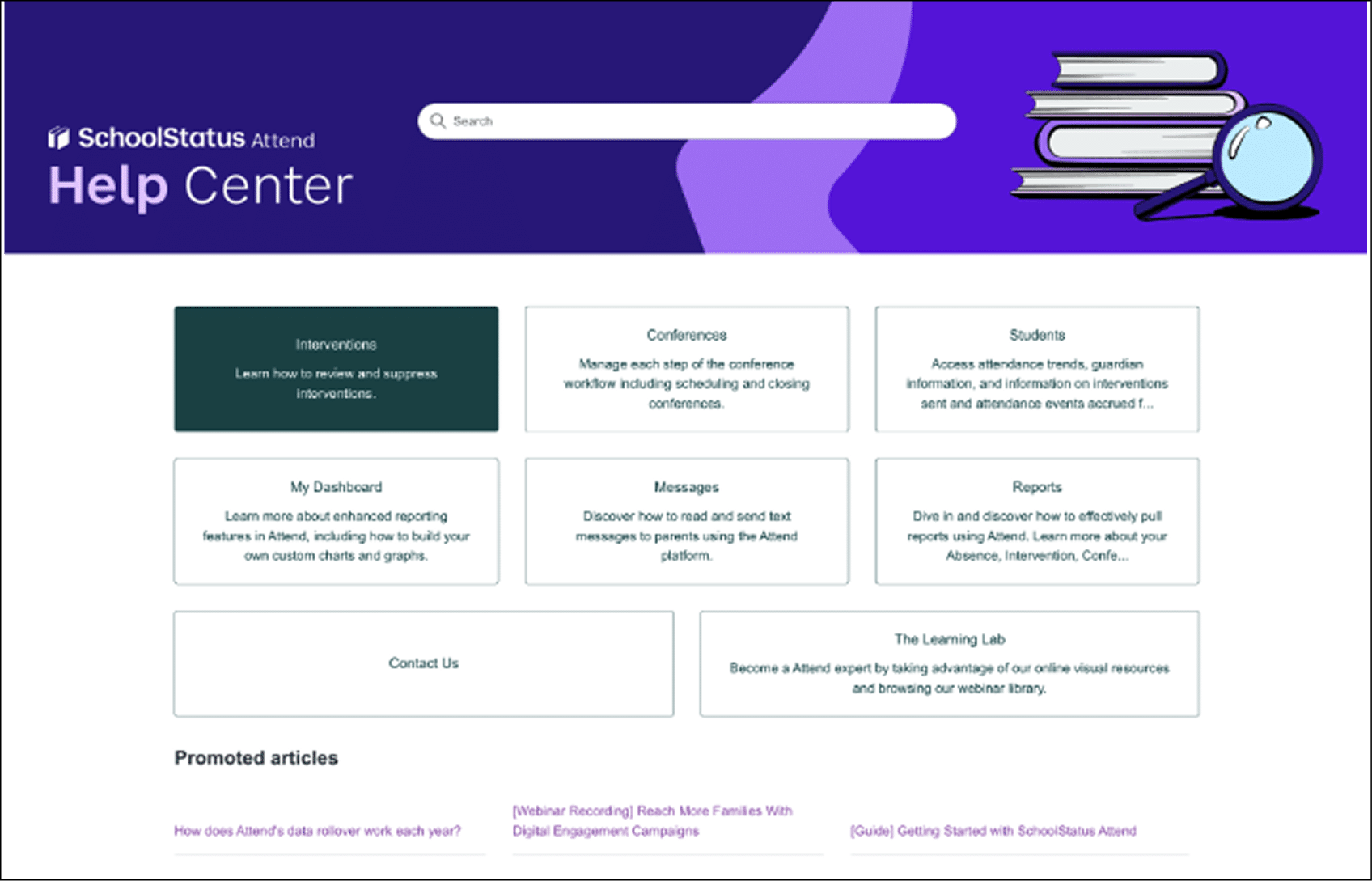
4. Explore how to use Attend, including features and functionality, along with training guides and webinar recordings.
If you need assistance, please reach out to our Support team at [email protected]. We’re happy to help!
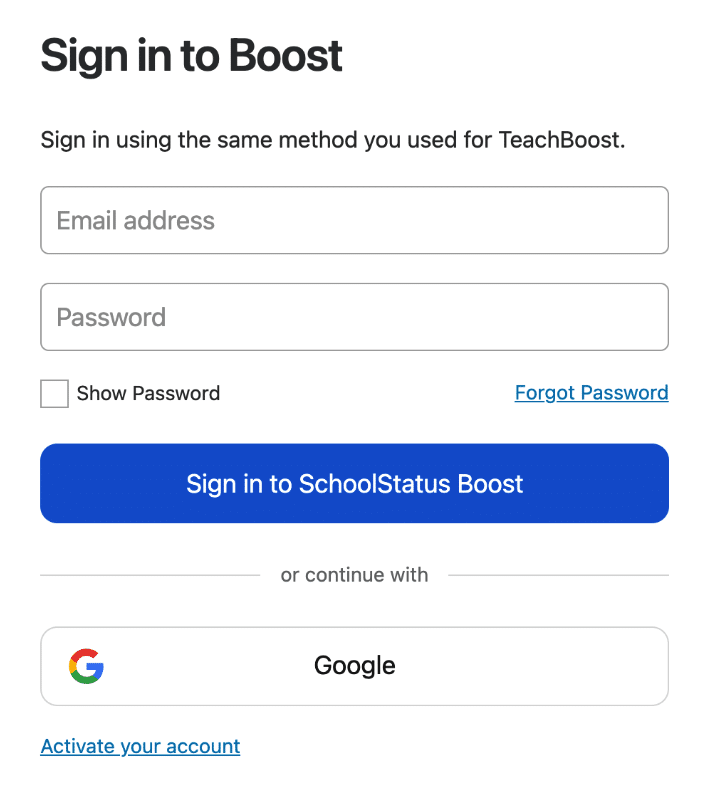
If your school email is not a Google domain, you’ll need to ‘activate’ your account by setting yourself a password. If you’re unsure whether your school uses G Suite for Education (and whether you can sign in with Google), you can paste your email address into this domain checker to find out. If the message states ‘This is a Google domain!’ you can skip to the next section, “My School uses G Suite for Education”.
We’ll send you an email verification to make sure that it’s you logging in to the account, ensuring the privacy of your data.
When you receive the email (this should only take a minute or so), then click the link provided: It’ll take you to the login page where you can create and confirm the password for your SchoolStatus Boost account.
Note: This password must be at least 8 characters and is case-sensitive.
If you’ve been waiting a couple of minutes for an activation email that still hasn’t arrived and you’ve checked your Spam/Clutter folders, please don’t hesitate to reach out to support at [email protected].
If your school email is a Google domain, you can sign in via Google, without the need to set and remember a separate password:
If you’re unsure whether your school uses G Suite for Education (and whether you can sign in with Google), you can paste your email address into this domain checker to find out. If the message states ‘This is a Google domain!’ you can sign in via Google, as below.
Note: We only use this information to log you into Boost and to let you easily upload files from your Drive to Boost.
If you’re having trouble signing in with Google, please contact our support team at [email protected] and include your full name and school-issued email address.

You will receive an error if your school or organization uses a special method called LDAP to log in to SchoolStatus Boost. Here are some things to keep in mind about your LDAP login method.
If you’re already trying to log in with the same email and password combination as your school account, then you’ll need to:
If you’re receiving an Err#2, then your email account is not currently registered with SchoolStatus Boost.
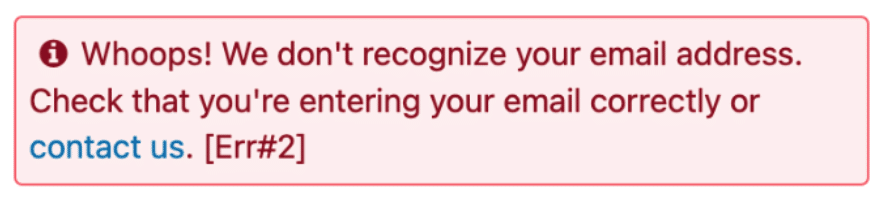
School or District Administrators are responsible for managing their rosters within Boost, and as such, we recommend that you reach out to them directly to ensure that your email account has been entered into the Boost roster for your school.
If you know you’ve been registered for an account but still can’t log in, please reach out to us directly at [email protected], including your full name, email address, and school, and we’ll take a look with you.
If you’re receiving an Err#7, then the password you’re using does not match the one currently set in our system.

If it’s been a couple of minutes since the email was sent and you’ve checked your Spam/Junk folders in your Inbox, then please reach out to support at [email protected]. We’ll get right on the case!
If you’re receiving an Err#8, then it looks like your account is set up to Sign in with Google.

Here’s what you’ll need to do:
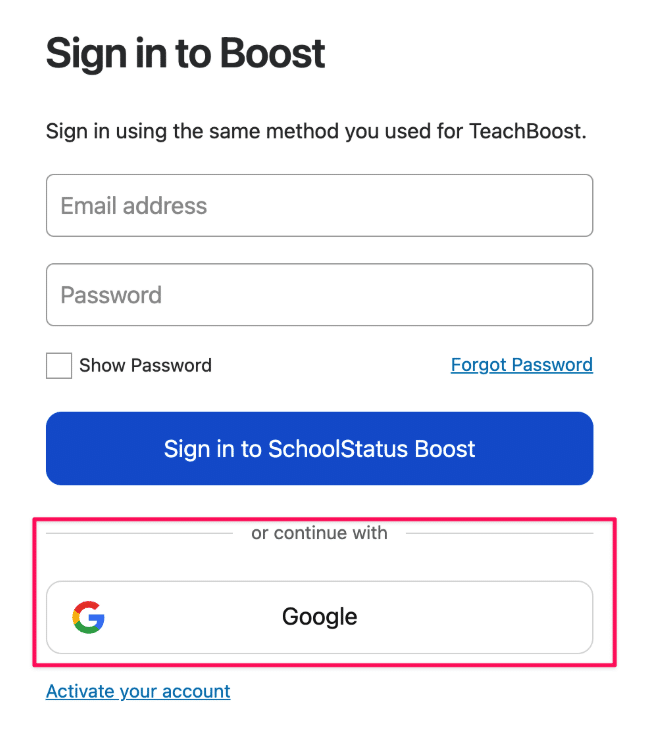
You may also be prompted to allow Boost access to your account information and Drive files. If so, accept these to proceed (Note: We only use this information to log you in to Boost and to let you easily upload files from your Drive to Boost).
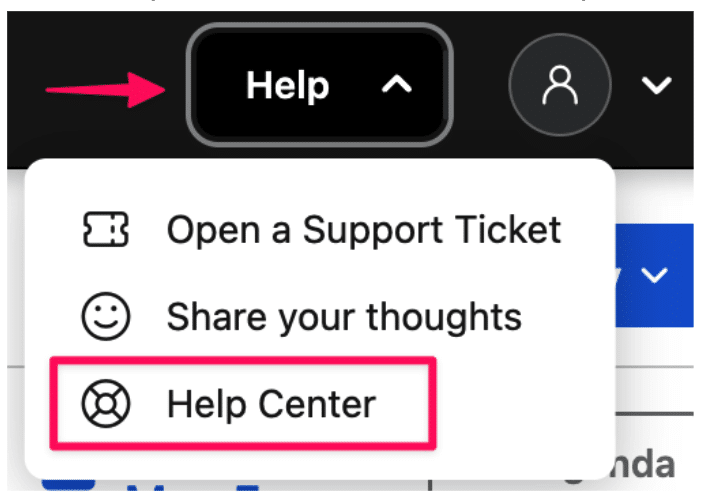
4. Explore how to use Boost, including features and functionality, along with training guides and webinar recordings.
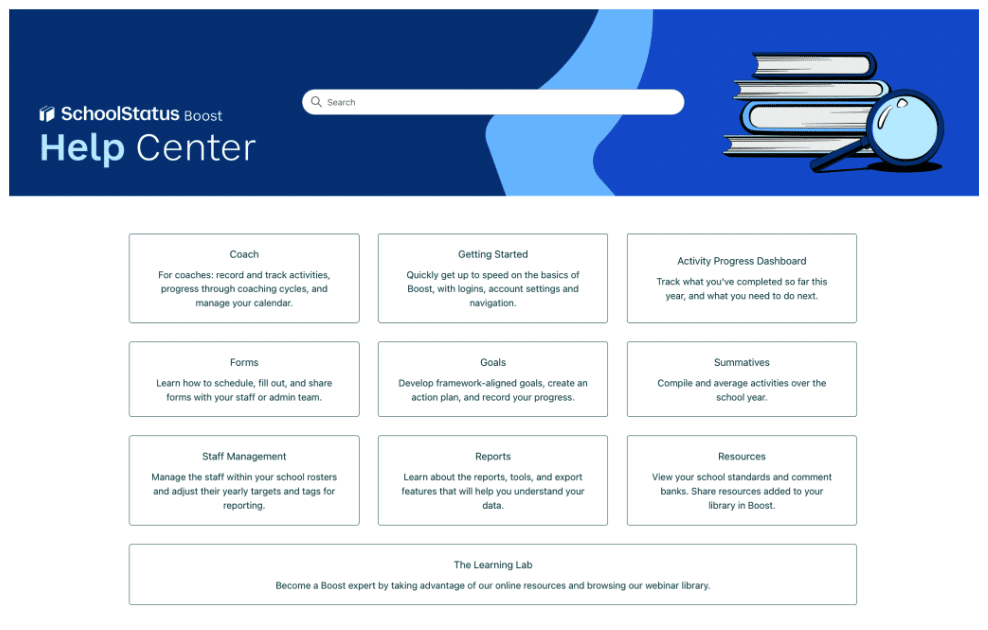
If you need assistance, please reach out to our Support team at [email protected]. We’re happy to help!
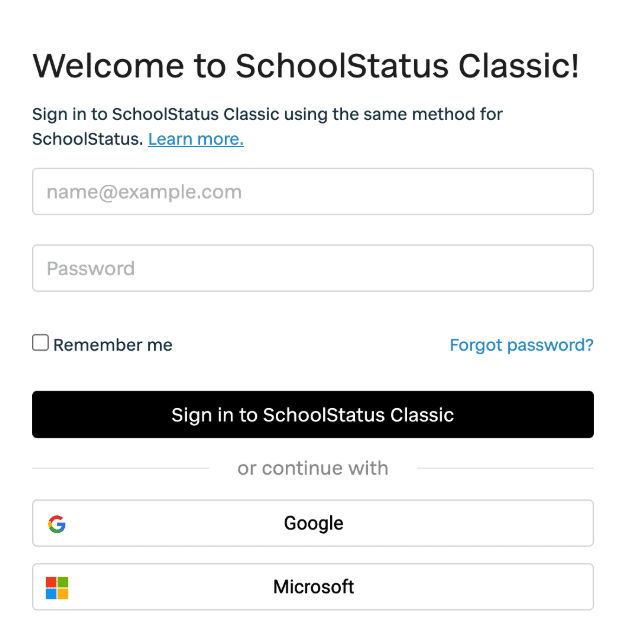
Depending on your school or district setup, you may be able to log in using Single Sign-On (SSO) through Google or Microsoft.
Simply select the appropriate option on the login page and follow the prompts.
Please note: If you use SSO to log in, the “Reset Your Password” link will not be available. If you are having trouble logging in with SSO, please contact our support team at: [email protected] and include your full name, email address, and school or district name.
If you’ve forgotten your password, click the “Forgot Password” link on the login page and follow the instructions to reset it.
If you see this error message below:
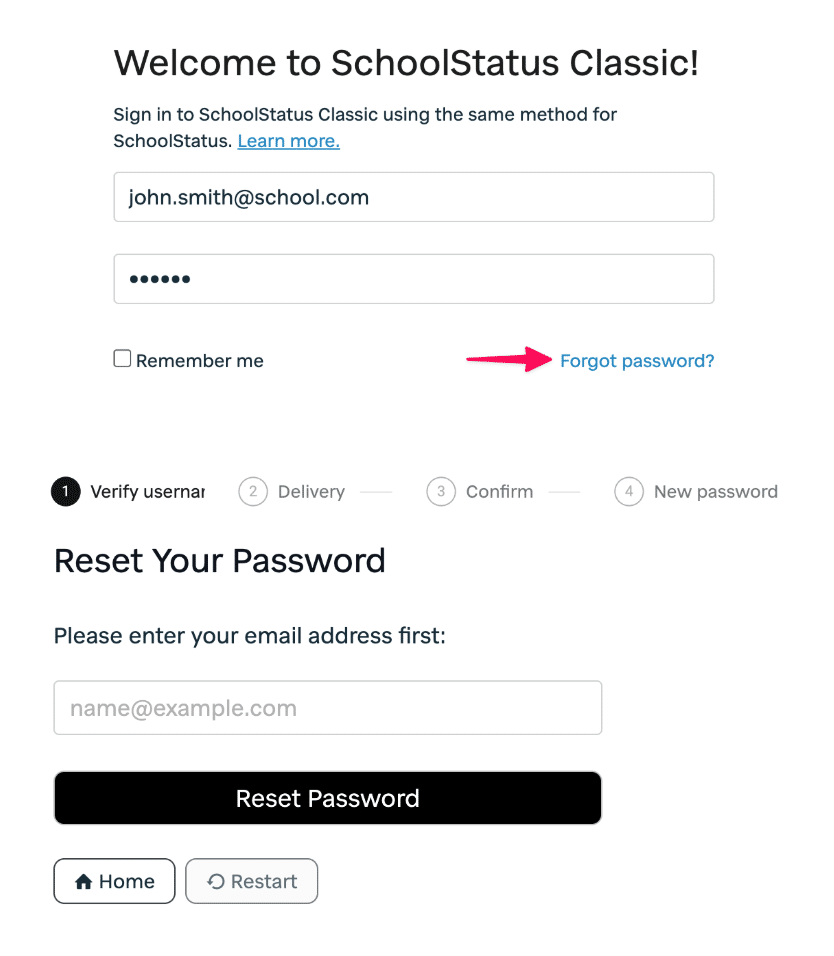
If the issue persists, please contact our support team at [email protected] and include your full name, email address, and school or district name.
Head to the Apple App Store (iOS) or Google Play Store (Android), search for “SchoolStatus Classic,” or use the direct download links for iPhone or Android. Once installed, follow the steps below to get started.
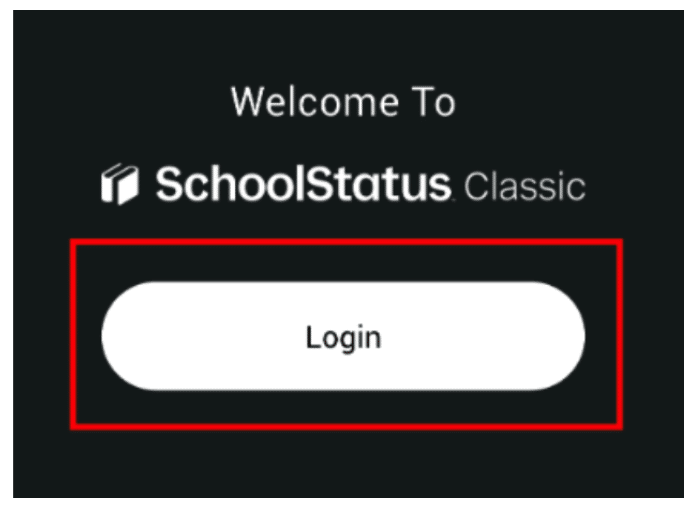
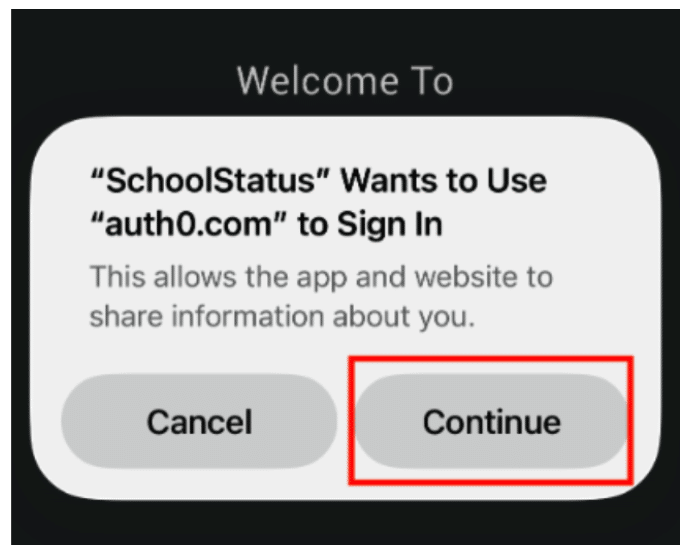
2. Click Continue in the prompt to grant permission
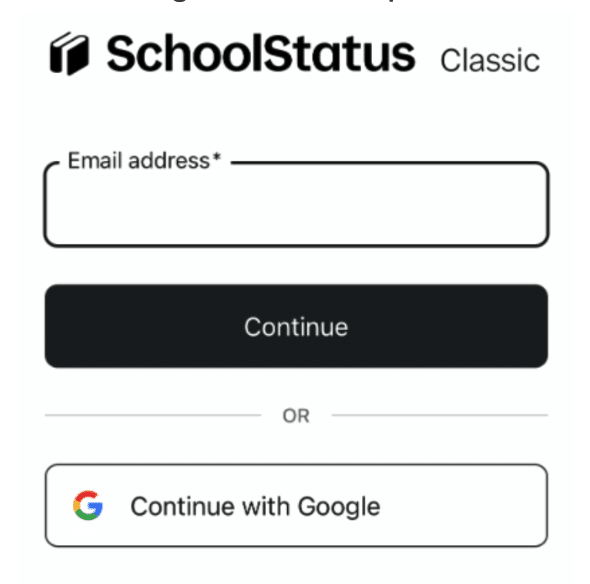
3. You can log in via email+password or use Google Sign-in
4. Next, set your 4-digit PIN, then enter it again to confirm.
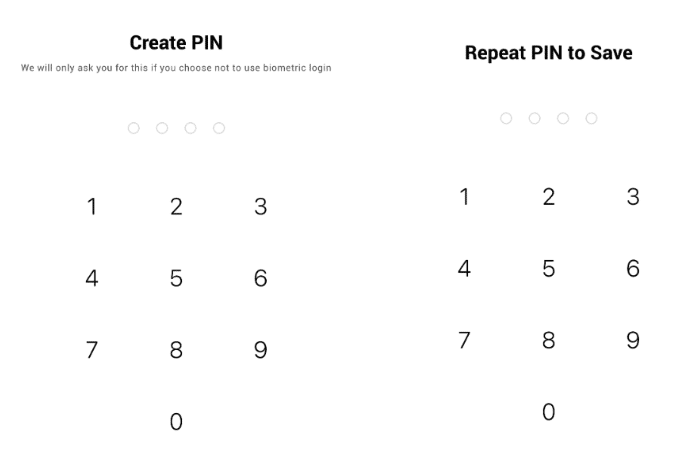
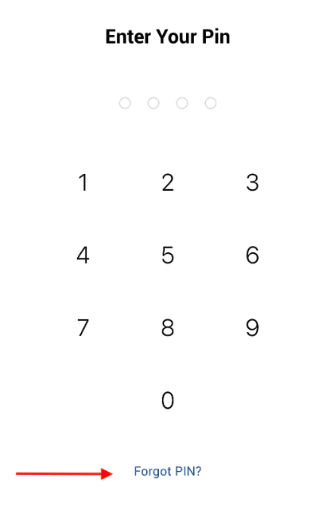
5. If you ever forget your PIN, just tap “Forgot PIN?” You’ll be prompted to log in again, after which you can set up a new PIN.
If you’re having trouble accessing the mobile app, contact us at [email protected] and include your full name, email address, and school or district name
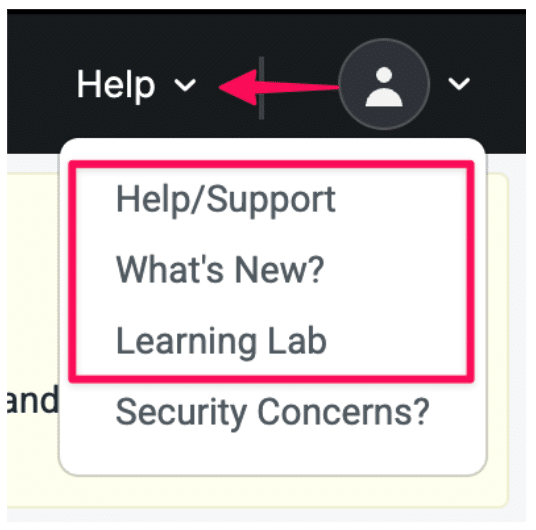
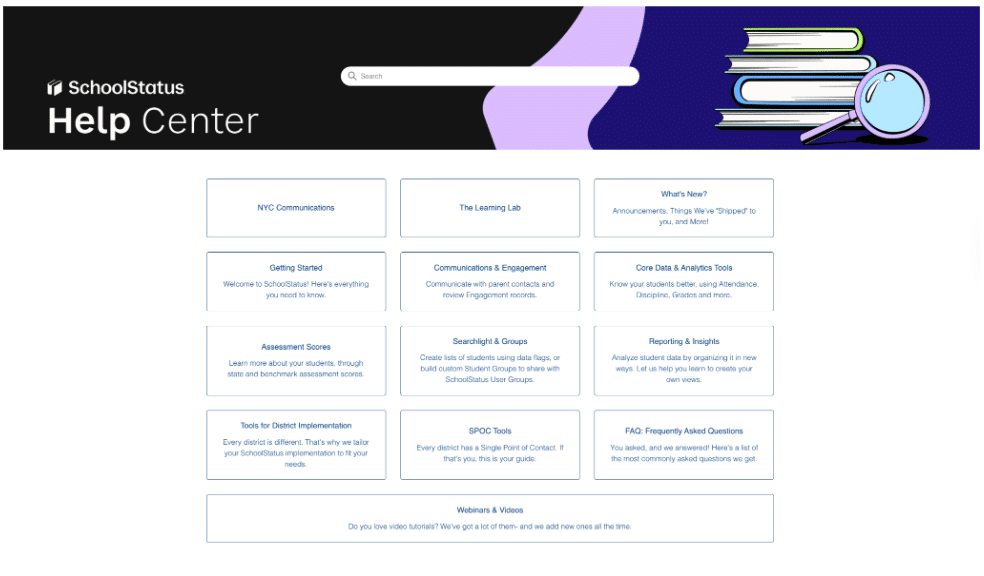
4. Explore how to use Classic, including features and functionality, along with training guides and webinar recordings.
If you need assistance, please reach out to our Support team at [email protected]. We’re happy to help!
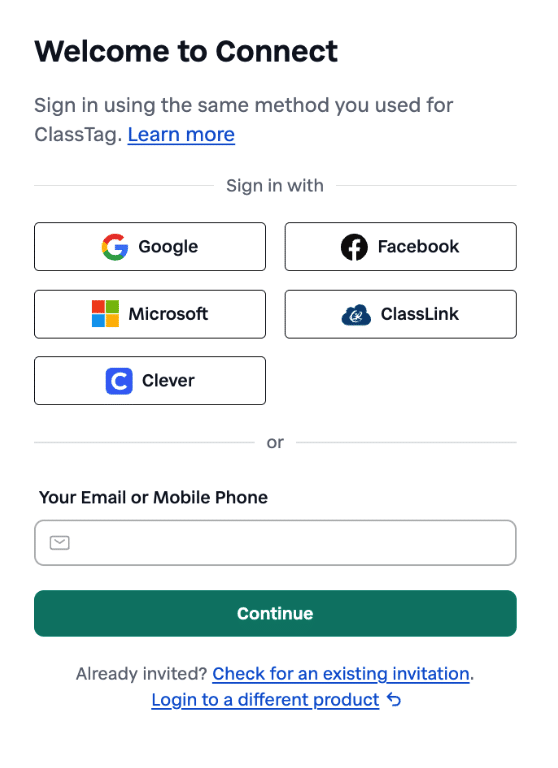
If you use email+password, or phone number+password to sign in, please follow the steps below.
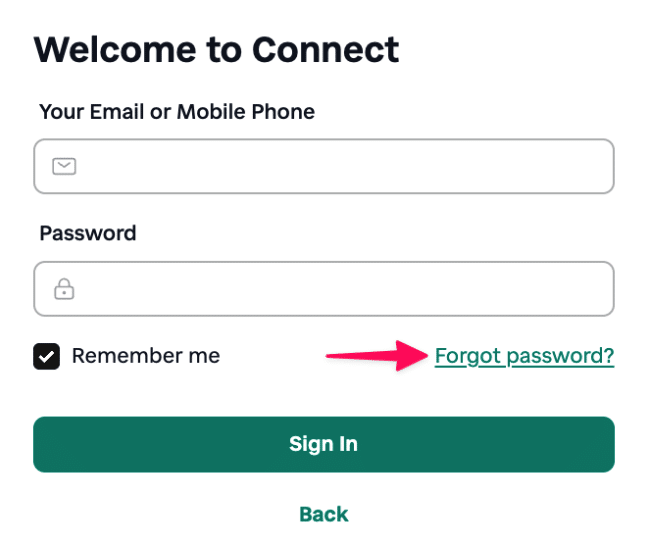
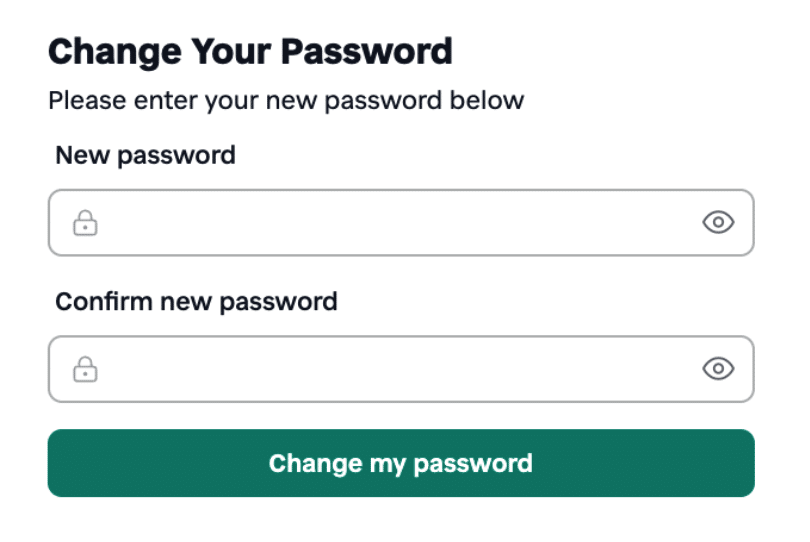
2. Enter your login credential and click Reset Password.
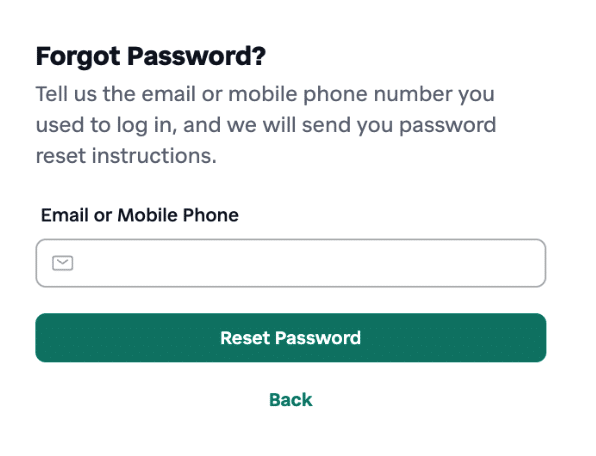
3. If your credentials are valid, you’ll receive a password reset link via email or SMS. The delivery method depends on your account’s preferred contact method.
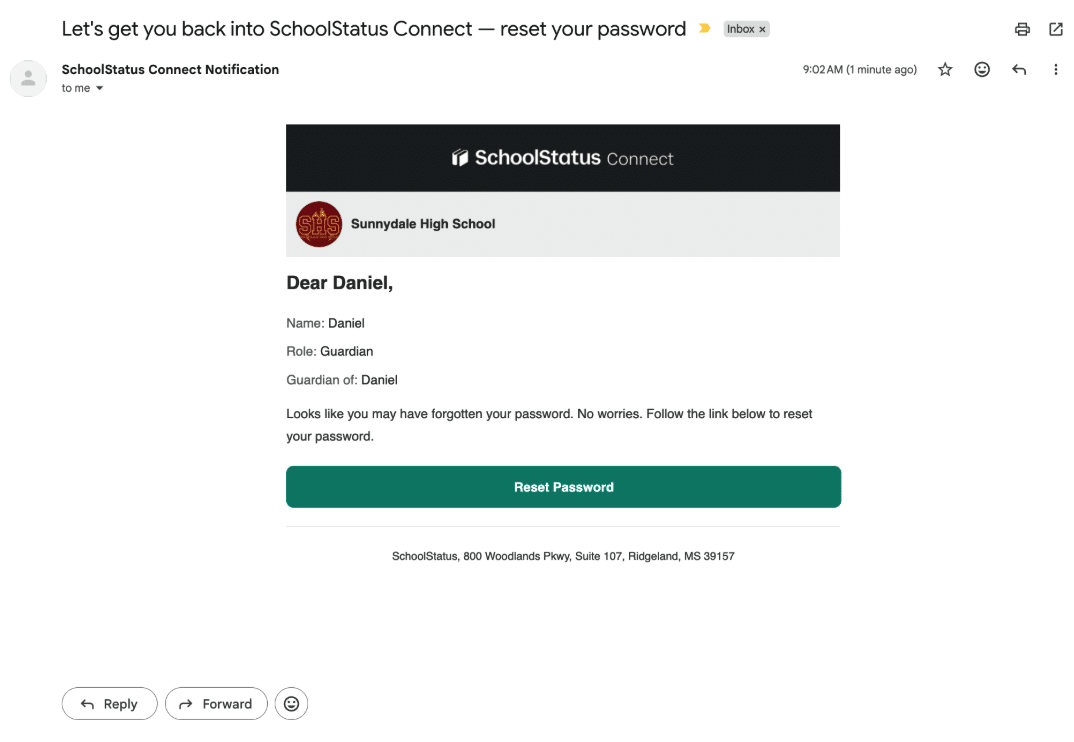
4. Open the link and follow the instructions to reset your password.
If you need further assistance with accessing your Connect account, feel free to reach out to our support team at [email protected], and we will be happy to help!
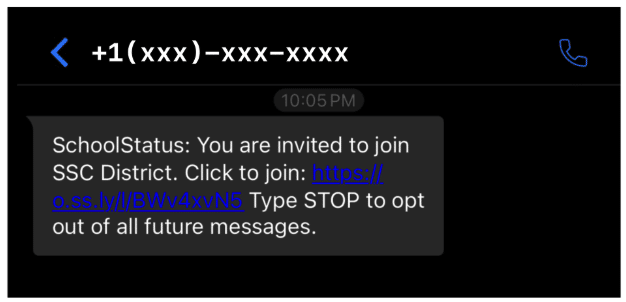
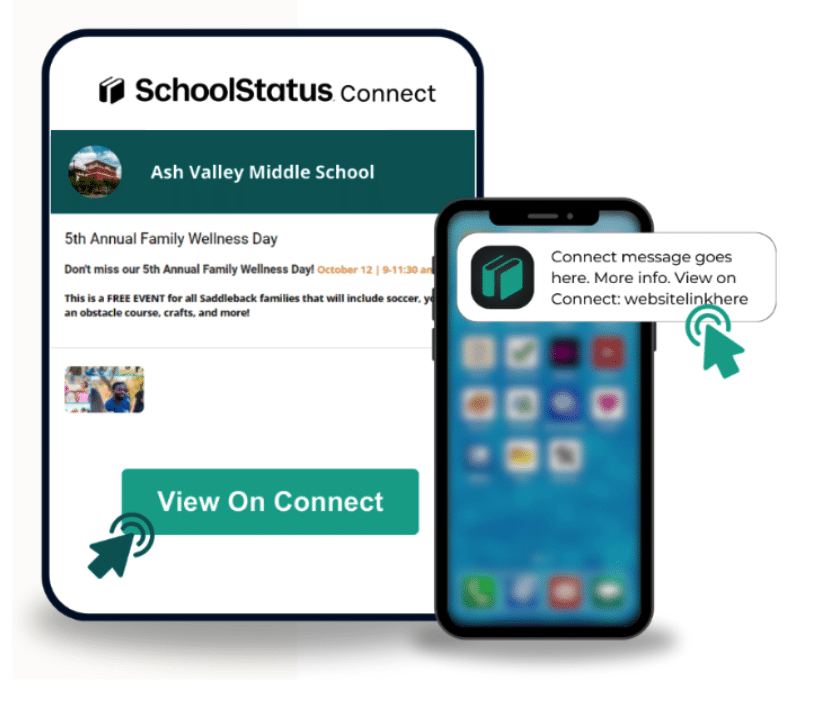
If you haven’t received a text message invitation, try the following:
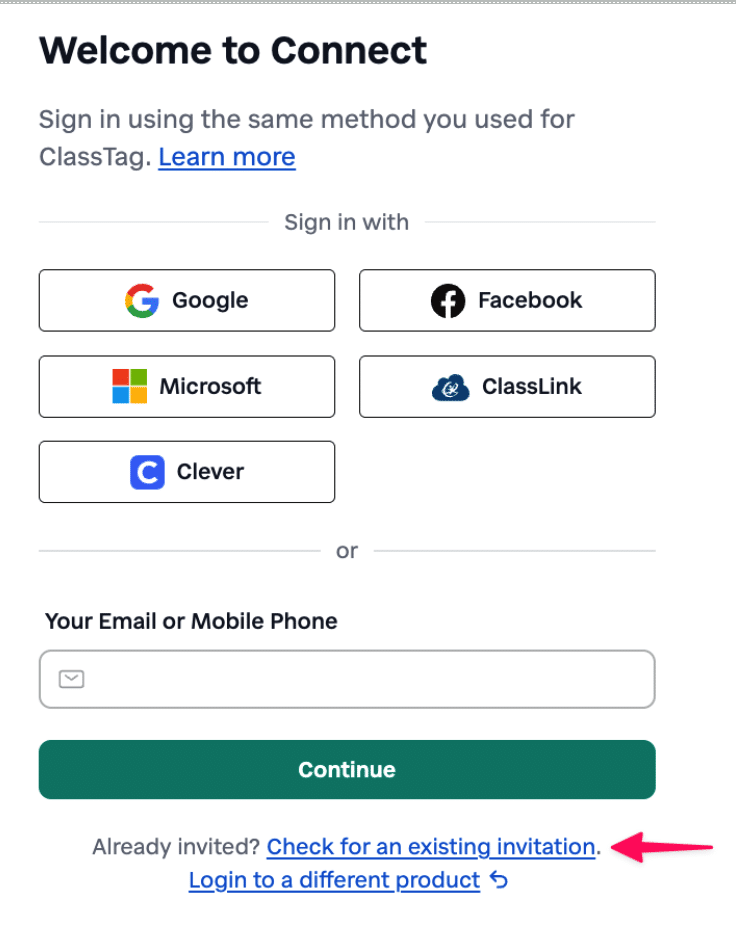
If you think you may already have an invitation:
Click Check for an existing invitation.
3. Enter your email or mobile number.
4. Click Check for Invitation.
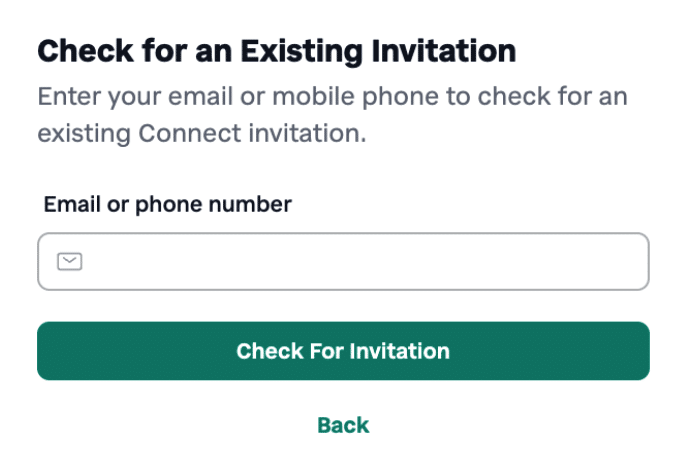
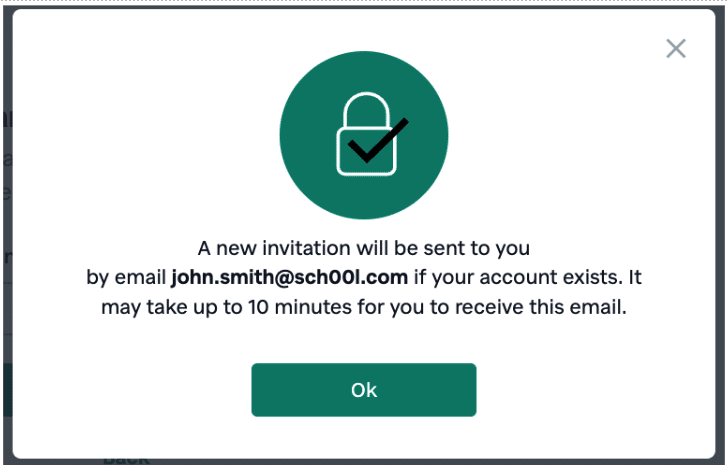
5. If an account exists, a new invitation will be sent to you.
If you need further assistance with accessing your Connect account, feel free to reach out to our support team at [email protected], and we will be happy to help!
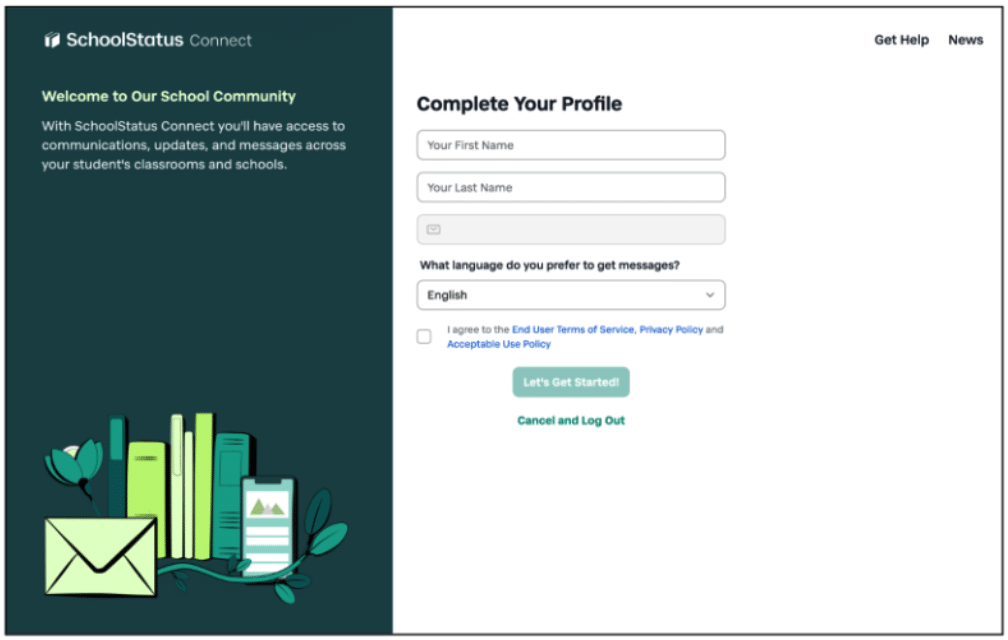
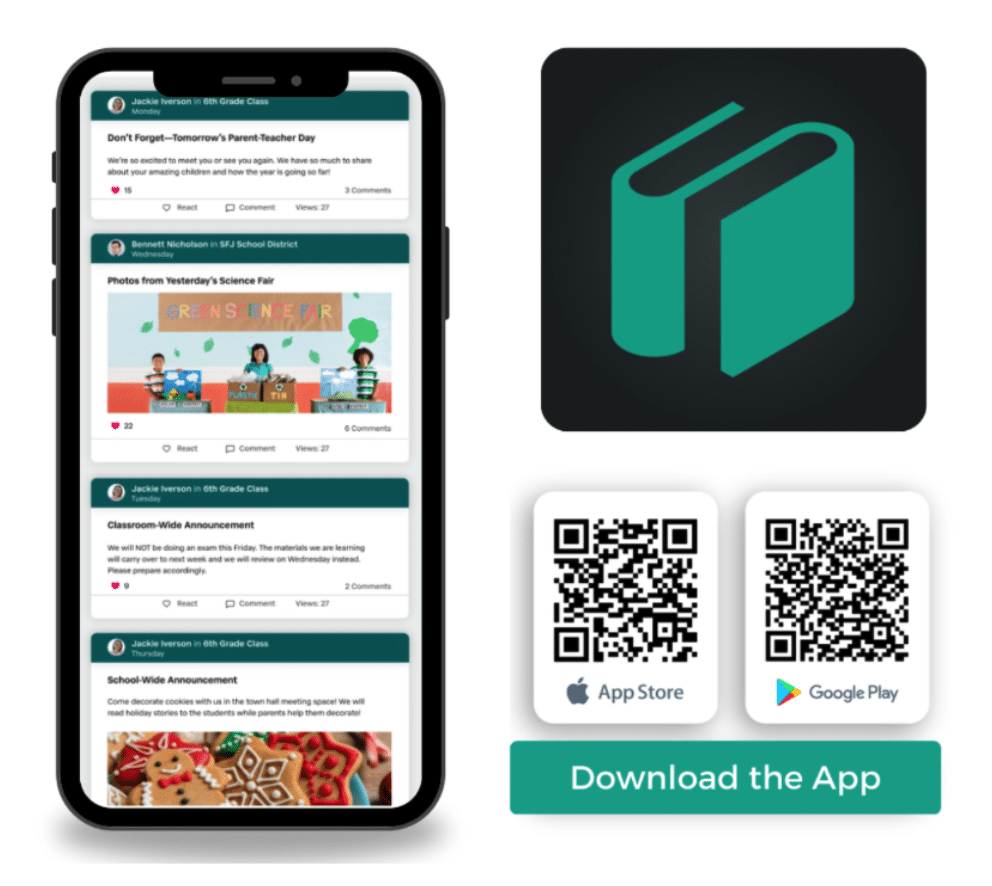
Update your Account Settings and your Communication Preferences.
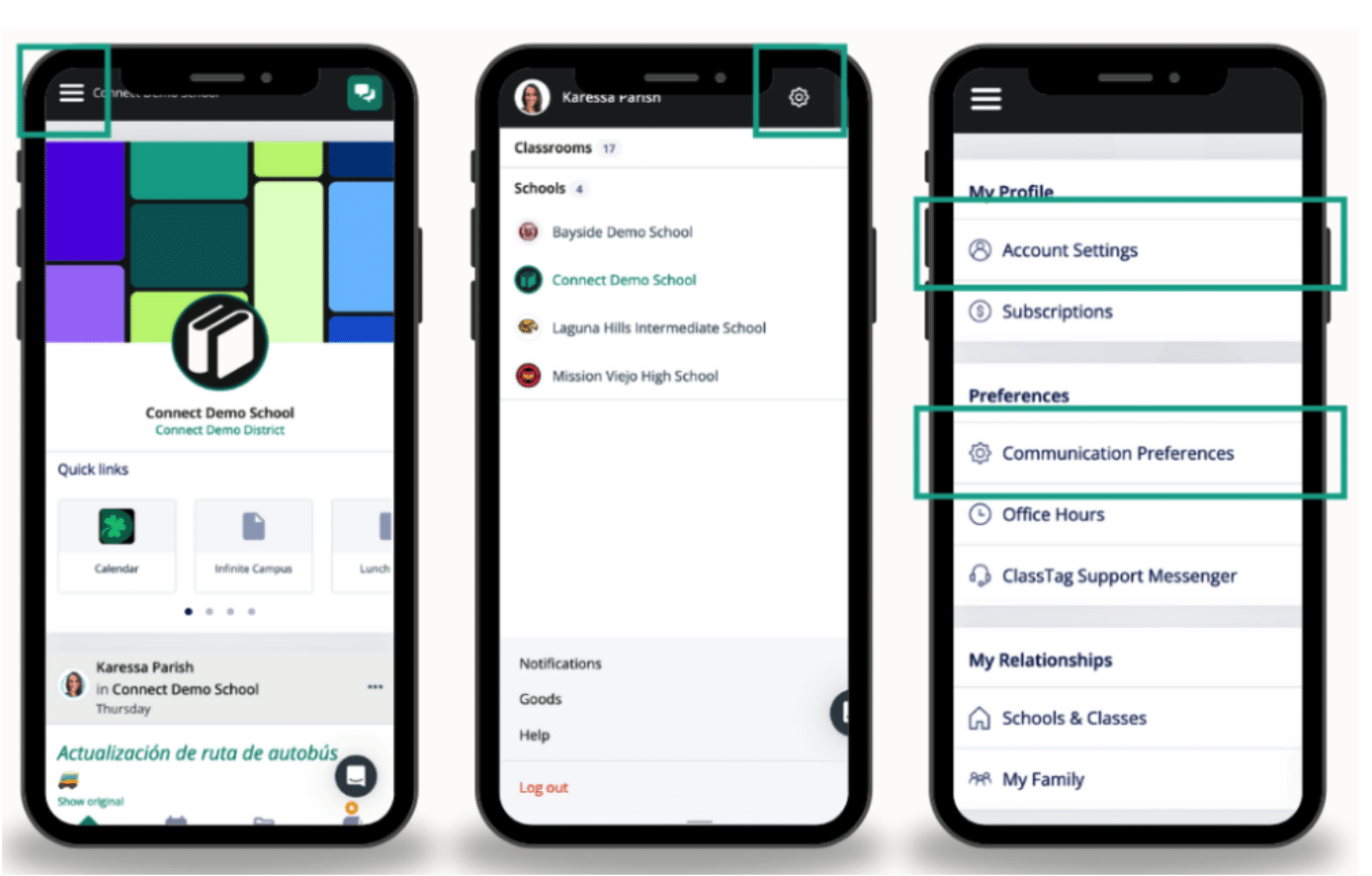
Use SchoolStatus Connect to:
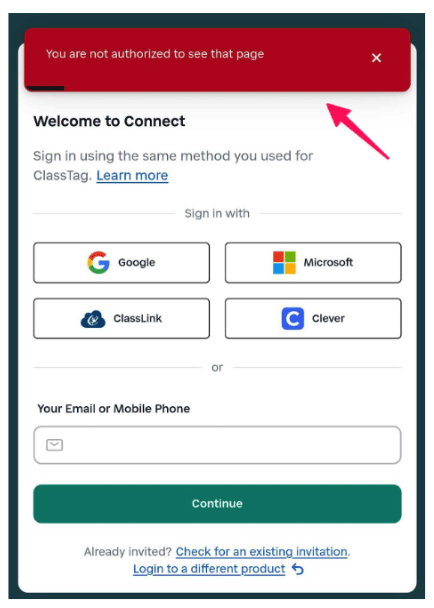
This usually occurs when:
Follow these steps to resolve the issue:
If you’re still unable to access the link after following these steps, please contact support at [email protected] for further assistance.
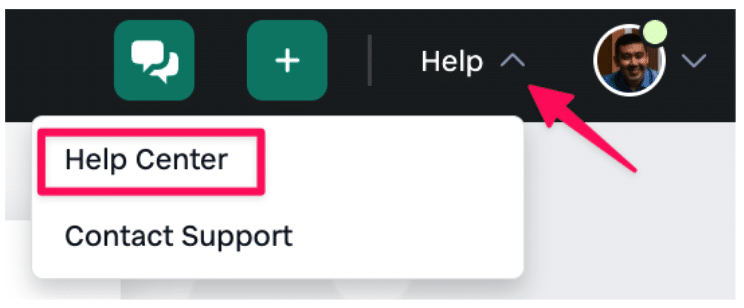
4. Explore how to use Connect, including features and functionality, along with training guides and webinar recordings.
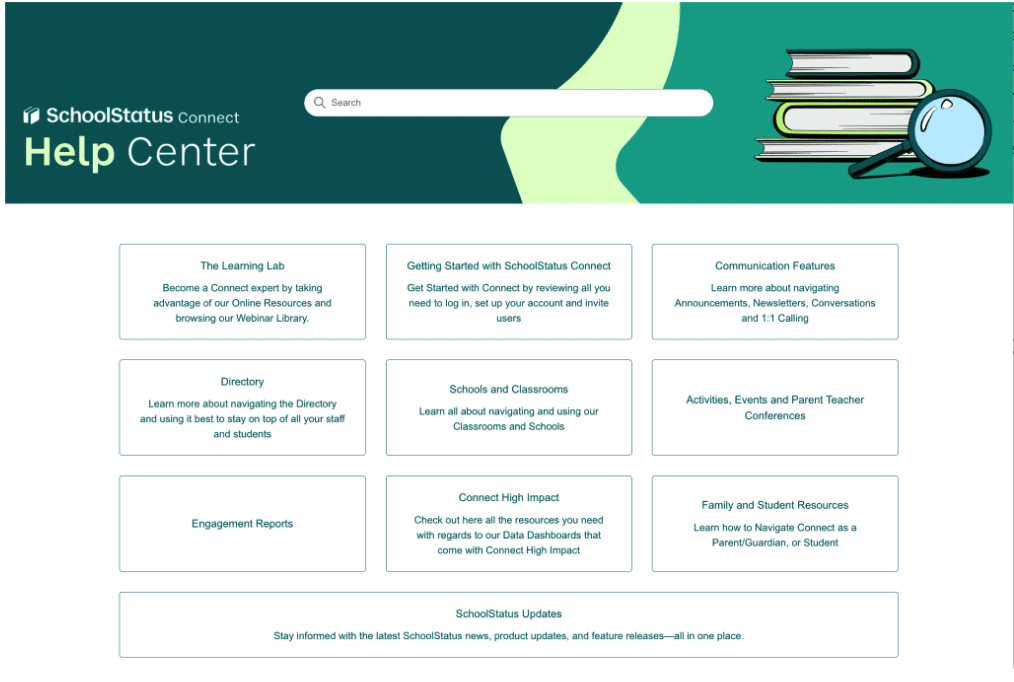
If you need assistance, please reach out to our Support team at [email protected]. We’re happy to help!
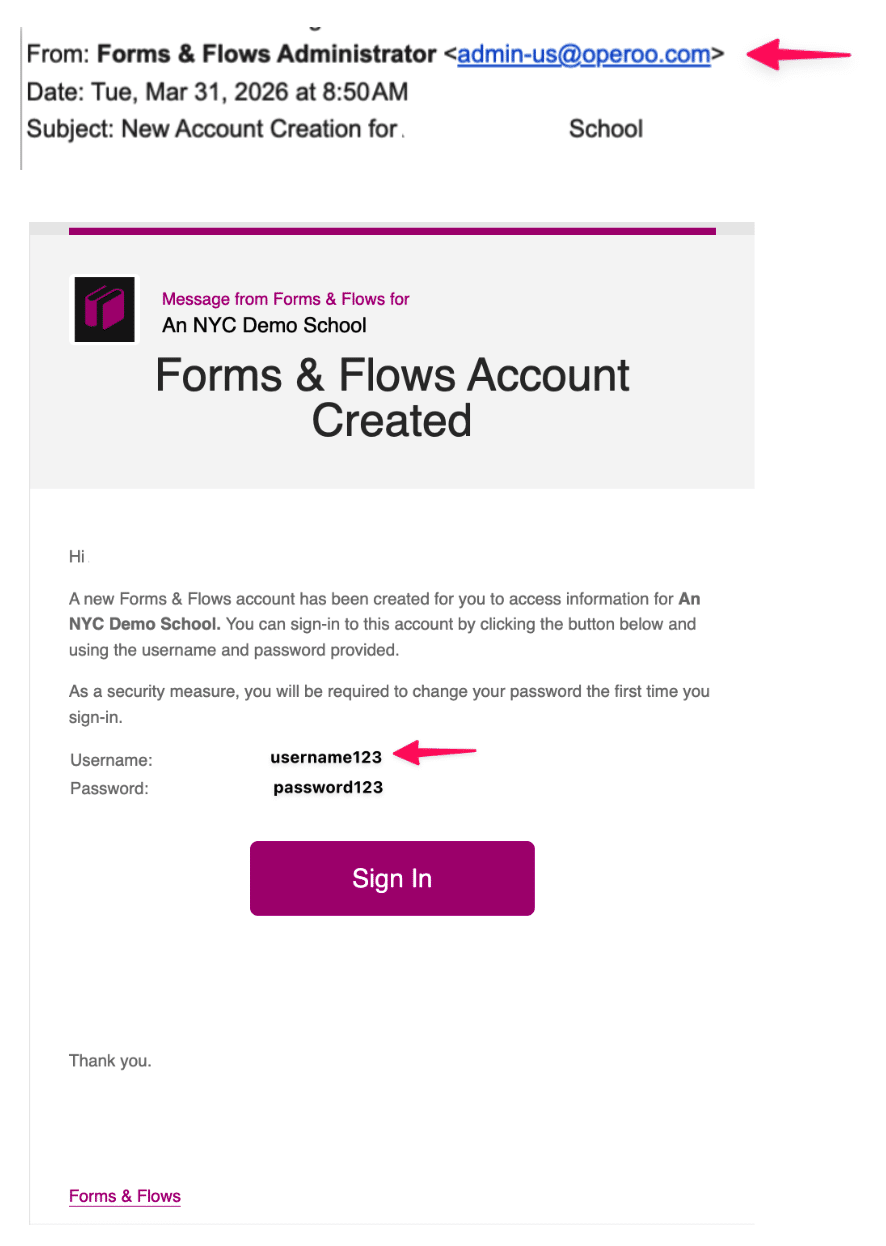
2. Contact your school, club, or organization to confirm your username. Ask to speak with the Forms & Flows Administrator for assistance. For security and privacy reasons, we’re unable to share this information unless we can verify your identity.
Sometimes when signing in to your Forms & Flows account, your email may not be recognized. In these cases, you can sign in using your username instead.
If you need assistance, please reach out to our Support team at [email protected]. We’re happy to help!
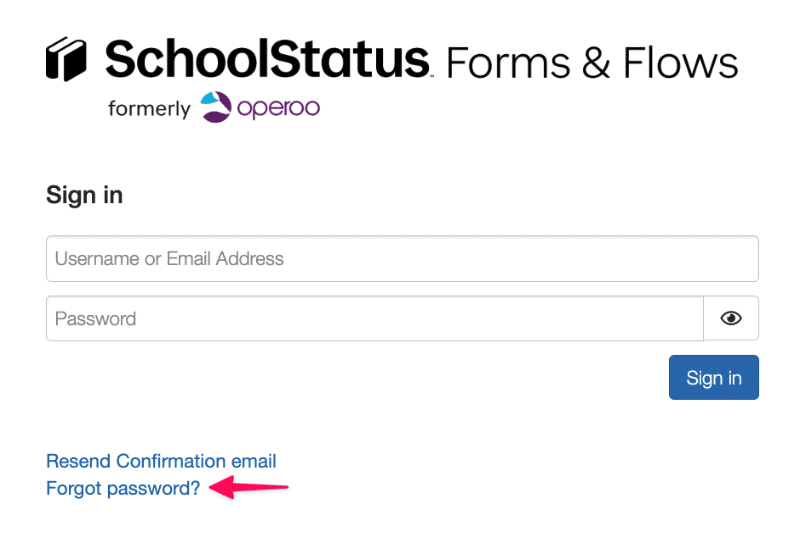
2. Enter your email address or username, then complete the CAPTCHA. (If your email isn’t recognized, use your username.
3. Click Reset Password.
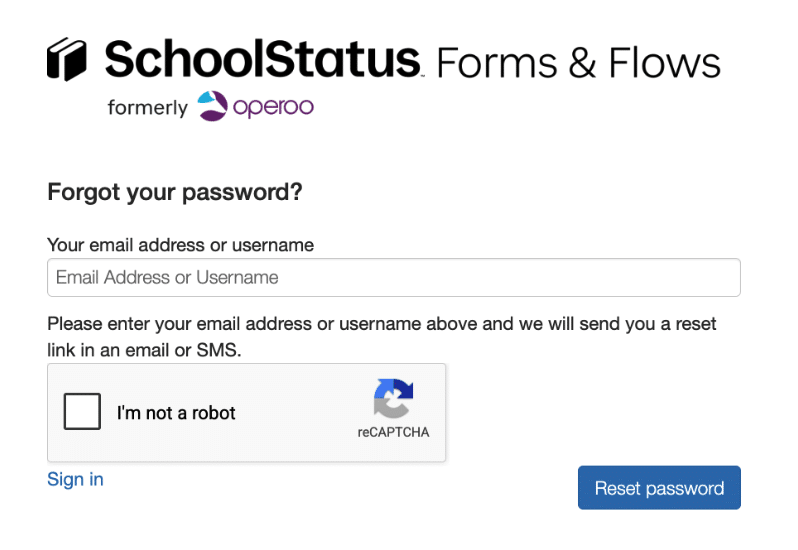
4. Choose how you’d like to receive your reset link: email or SMS.
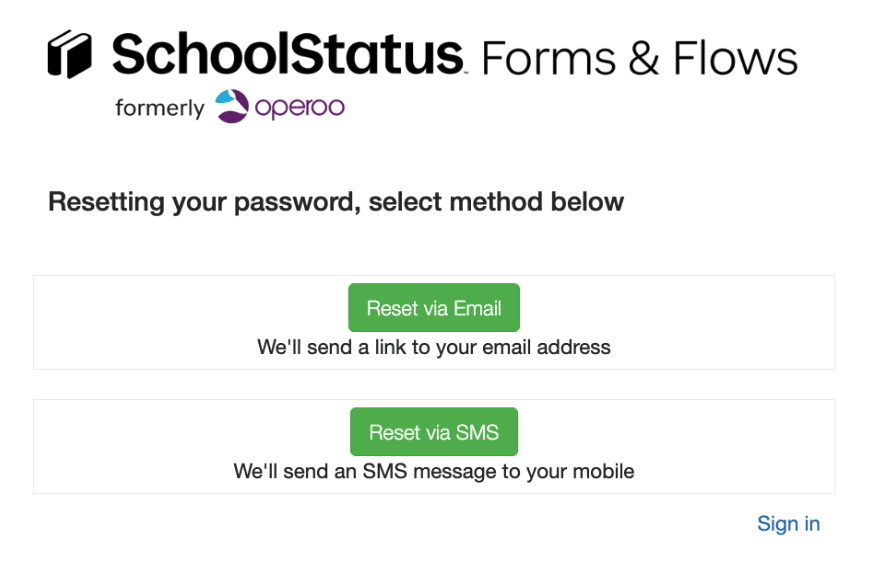
If you choose email:
If you choose SMS:
If you haven’t received your password reset email, try the following:
Tip: Avoid submitting multiple reset requests in a short time. Try once or twice, then wait 5–10 minutes for the email to arrive.
If you’re still unable to access the link after following these steps, please contact support at [email protected] for further assistance.
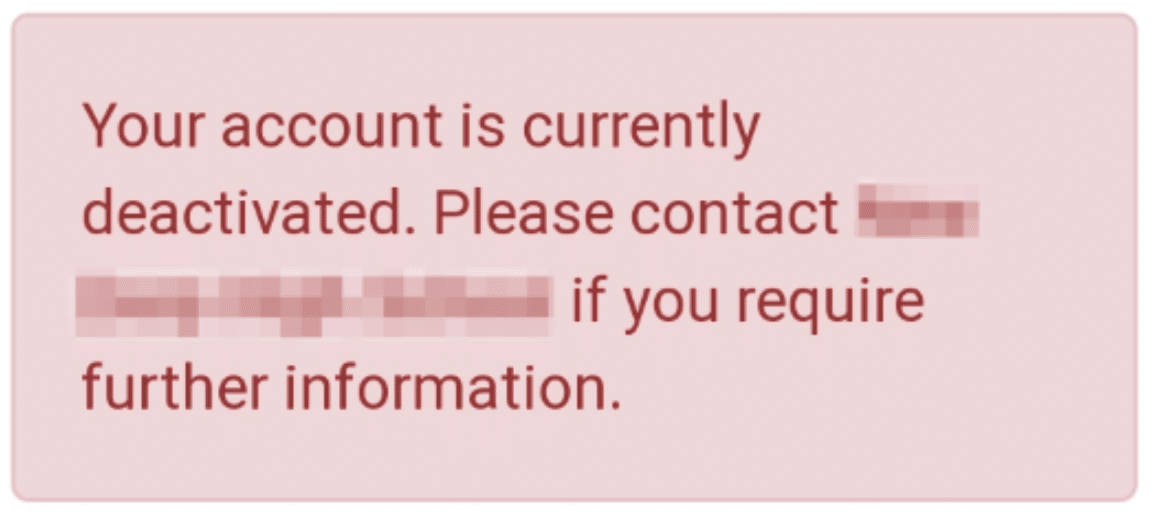
Your account may be deactivated for one of the following reasons:
If you have not received updated login details, please contact your school’s Forms & Flows administrator. They can confirm the reason and help restore your access if needed.
If you’re still having trouble, please contact support at [email protected] for further assistance.
Our app is available on Google Play (for Android) or App Store (for iOS). Download it today to stay connected and engaged with your child’s school experience.
Or if you are using the previous version of Forms & Flows:
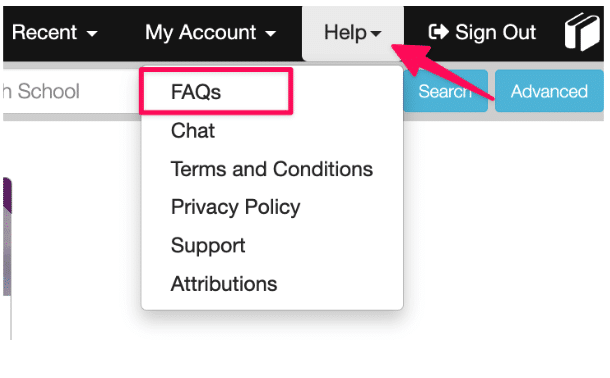
4. Explore how to use Forms & Flows, including features and functionality, along with training guides and webinar recordings.
The SchoolStatus Sites (formerly SchoolNow) mobile app can be downloaded from the Apple App store or the Google Play Store. Keep in mind the app pulls data from the schools Student Information System (SIS,) and if that person does not have a record, they cannot login. We have mechanisms in place to enable someone to submit a request to the school in such cases.
Once downloaded, you can launch the app. Teachers, school officials, parents and guardians will use either the email address or phone number that is on file in the schools Student Information System (SIS). They are then asked a few simple questions as part of the data verification process. This process simply confirms that your name and associated students are correct. This is important as the app only shows you the information associated with the district and specific school(s) you have children in.
If you need further assistance, please contact support at [email protected] for further assistance.
SchoolStatus also supports SSO authentication methods through Microsoft, GG4L and Clever. Additional setup procedures may apply.
If you need further assistance, please contact support at [email protected] for further assistance.
GG4L-initiated Active Sync (API-based sync)
SIS-initiated Sync (CSV uploading via SFTP)
If you have any questions, please contact support at [email protected] for further assistance.
Clients with external applications must obtain and provide the needed third-party software licenses, and the needed version(s) of the software. SchoolStatus may deny technical support requests for older versions of third-party software, or software where proper licenses are not maintained.
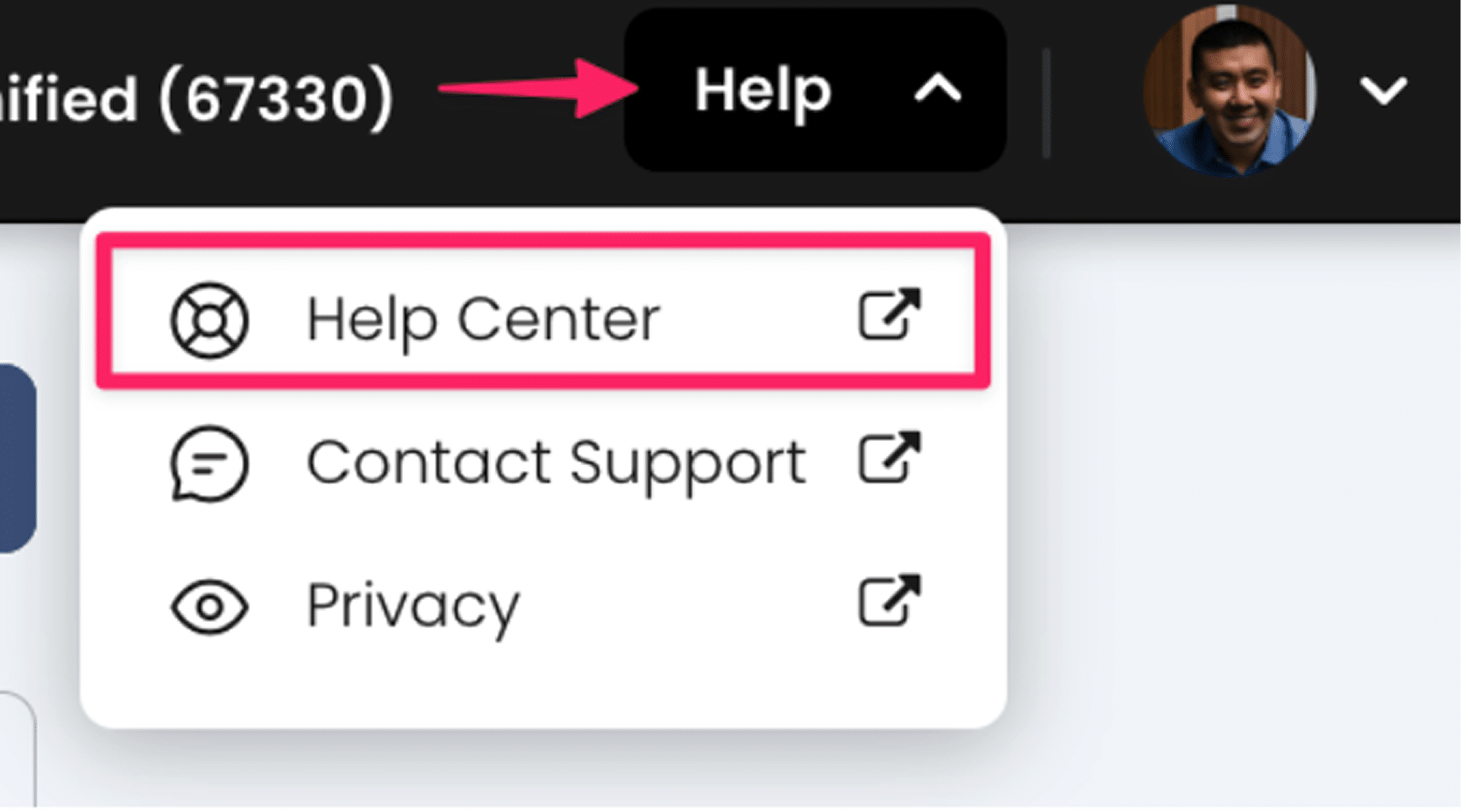
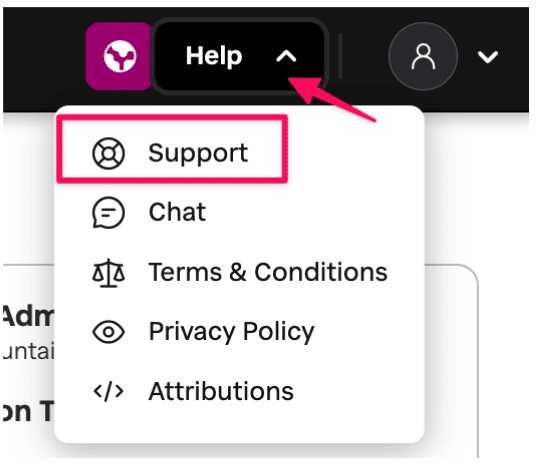
2. Click the Help button next to your avatar

3. Explore how to use Forms & Flows, including features and functionality, along with training guides and webinar recordings.

3. Explore how to use Smore, including features and functionality, along with training guides and webinar recordings.

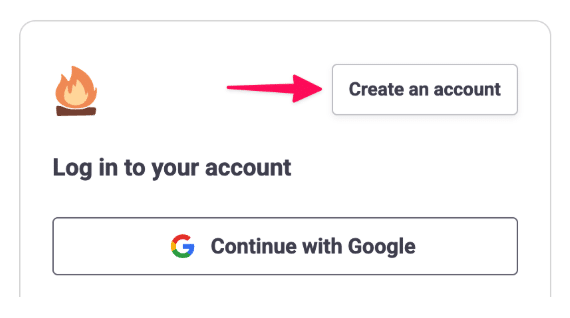
3. Select Create an Account.
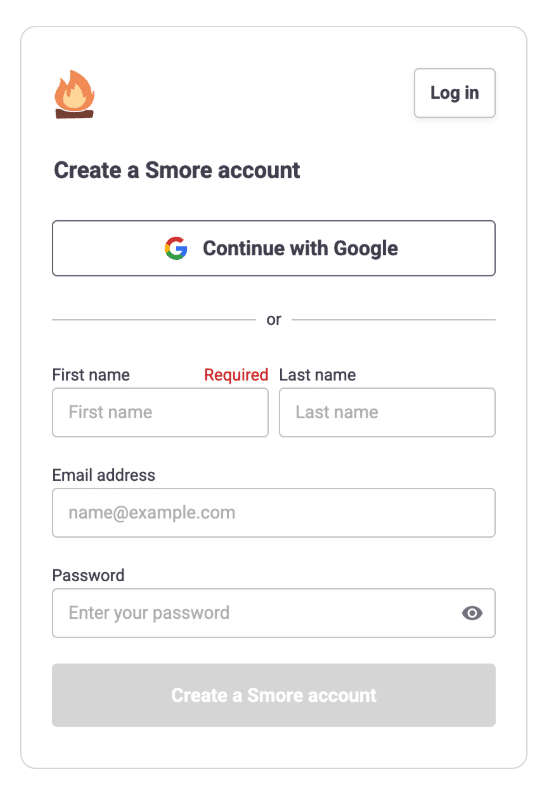
4. Choose your preferred sign-up method:
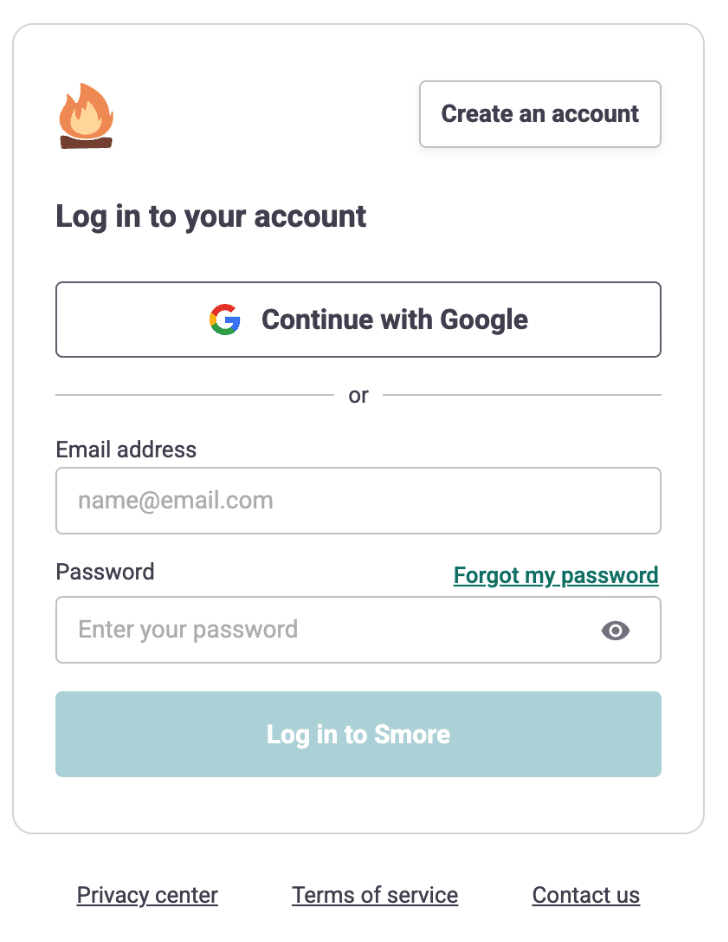
3. Choose your login method:
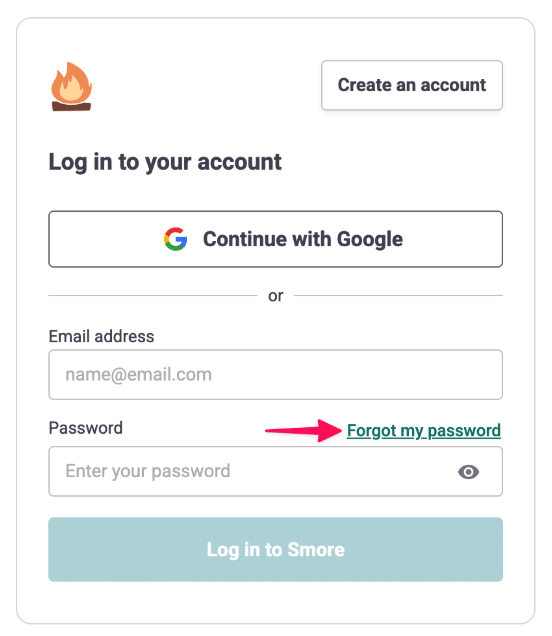
3. Enter your email address and submit the request.
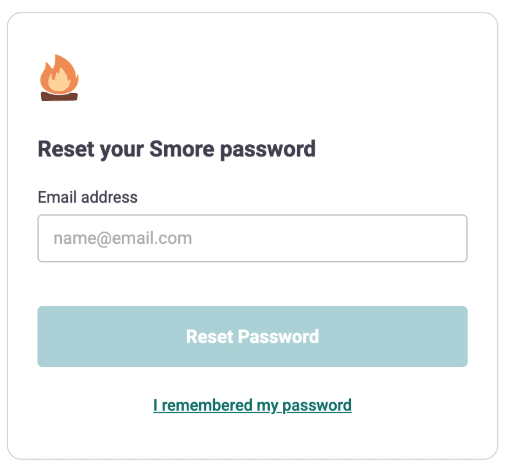
4. Check your inbox for an email from Smore with the password reset link.
5. Click the link and follow the prompts to create a new password.
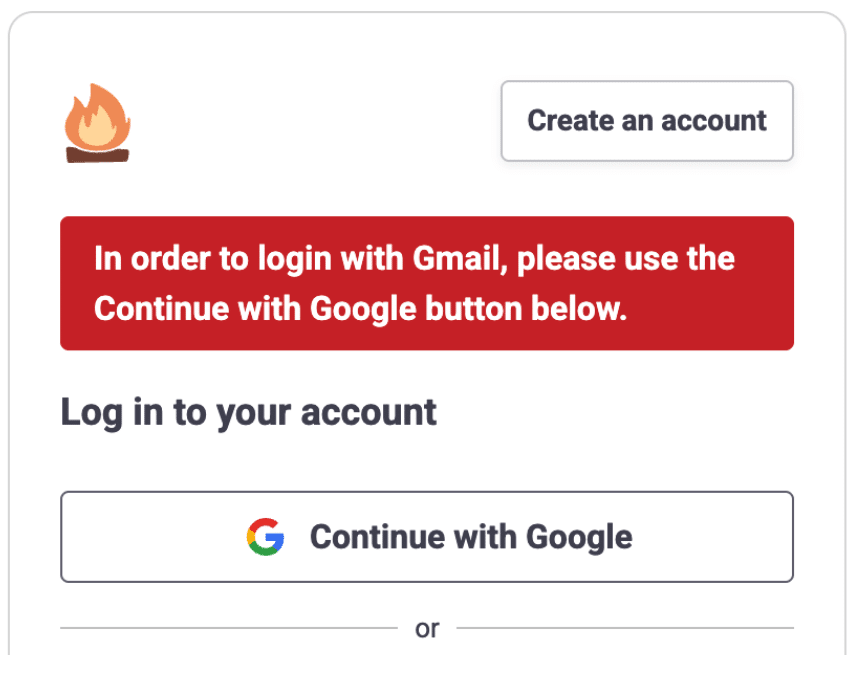
Note: If you normally sign in with Google, the Forgot Password option will not work and may display an error. Please continue using Sign in with Google to access your account.
If you need assistance, please contact our support team at [email protected].
Starting on May 1, 2026, both current free account users and new users signing up for Smore will receive a 30-day Smore Pro trial at no cost.
During this trial, you’ll have full access to Smore Pro features so you can explore everything included in a paid plan before deciding whether to subscribe.
After the trial, you’ll be able to choose a paid plan if you’d like to continue using Smore with full editing access.
During your free trial, you’ll have access to all Smore Pro features, including:
⚠️ During the free trial period: You can create 10 newsletters and can send up to 3,000 emails total during the 30-day trial. A paid Smore Pro plan includes 15,000 email sends per month.
At the end of your 30-day trial, you’ll need to purchase a paid plan to continue creating and editing newsletters.
During this time:
After the 90-day view-only period ends, your account and newsletters will be permanently deleted.
Q: Will I get reminders before anything changes?
Yes! We’ll send reminder emails before:
That way, you’ll have time to decide what you’d like to do next.
Q: How much does a paid plan cost?
Paid plans start at $8.25/month when billed annually.
You can review plan options and upgrade anytime.
Q: Can I get a refund after purchasing?
Because the 30-day trial gives you full access before purchase, refunds are generally not offered after upgrading. If Smore ends up not being the right fit, you can:
Q: What happens to my newsletters if I don’t upgrade?
Your newsletters will remain live during the 90-day view-only period, but you will not be able to edit existing newsletters or create new ones. Once the 90-day period ends, your account and newsletters will be permanently deleted. Because no credit card is required to sign up for the free plan, you will not be charged automatically when the 30-day trial ends.
To upgrade from the Free plan to an Educator plan:
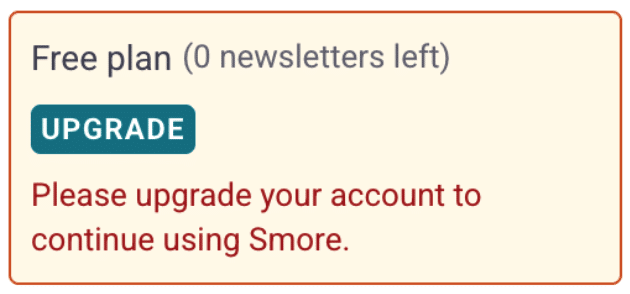
👉 We currently offer three Educator plans. Click this link for details on each one.
When upgrading from Educator Basic to Pro or Premium, you won’t be charged the full plan price. Instead, you’ll pay a prorated amount based on where you are in your current billing cycle.
This Educator plan offers 5,000 Email Credits that renew every month and access to the following features:
The Educator Pro plan offers 15,000 Monthly Email Credits.
The Educator Pro plan offers all the features of the Educator Basic plan, with the addition of:
The Educator Premium plan offers 30,000 Monthly Email Credits. This plan offers all the features of the Educator Basic and Educator Pro.
At this time, we only accept credit cards for individual Educator plans. In addition, we do not allow sharing an individual account between multiple people.
If you require additional email credits, the Educator Elite plan may be a perfect fit.
Need more help? You can reach us at [email protected]!
Owners and Admins on a Teams plan have access to the Management Dashboard, which allows them to:
Get in touch and request a demo!
Need more help? You can reach us at [email protected]!
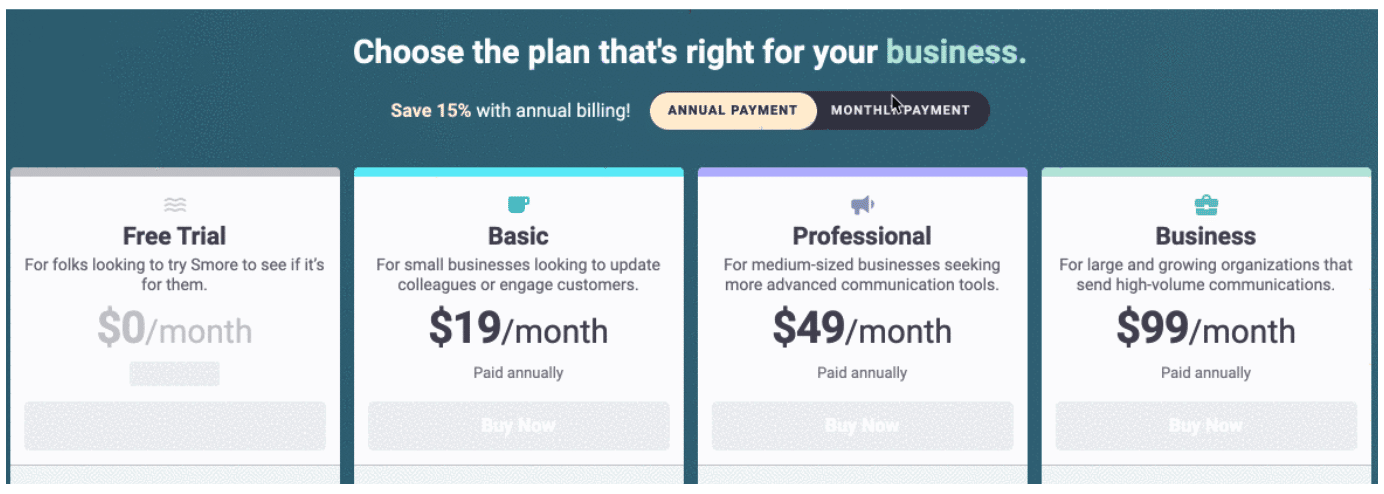
Perfect for small businesses just getting started.
Ideal for growing your audience.
Designed for teams who want maximum reach.
Once you’ve created your Free Account, please email us at [email protected], and we’ll send you a link to our Business Pricing Page. For our Business plans, you can choose monthly or annual billing.


